Users and roles
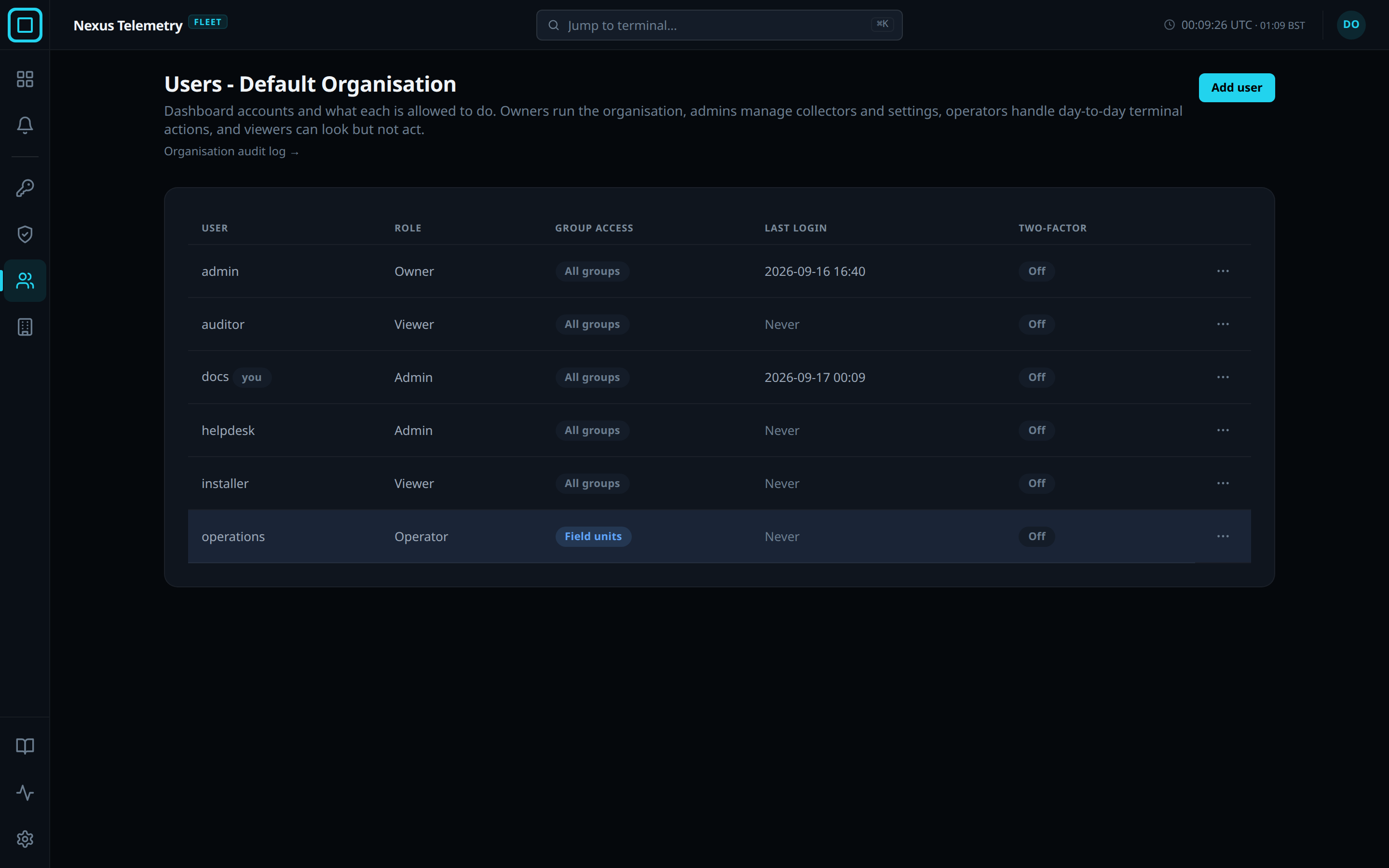
A user is a sign-in account for the Nexus Telemetry Fleet dashboard. A user belongs to one organisation and has one of 4 roles. The Users page is where users are added, edited and deleted. It is open to the Owner and Admin roles only.
Roles
| Role | Can |
|---|---|
| Owner | Everything, including billing |
| Admin | Everything except billing and an Owner’s account: users, tokens, organisations, collectors, certificates and settings |
| Operator | Act on terminals: rename, update, rotate a certificate, schedule maintenance, decommission and revoke |
| Viewer | Read everything and change nothing |
Billing has no interface yet. An Admin cannot add an Owner, change an Owner’s role, give the Owner role, or reset an Owner’s password or second factor. Each is refused with Only an Owner changes an Owner’s account. Operator and Viewer cannot open the Tokens, Users and Organisations pages. See Roles and permissions for the full matrix.
First user
A new fleet server has no users, and anyone who can reach the dashboard is let in without a sign-in. The dashboard shows the banner This dashboard is open with the command that creates the first user. The command is run on the fleet server. See Private deployment for the command. Once a user exists, the dashboard requires a sign-in.
Users page
Users in the rail lists every user in the organisation, with Username, Email, Role, Group access, Last login and Two-factor. The username is the name that signs in, matched exactly as typed. The email address signs in too, in any letter case. Last login reads Never until the user’s first sign-in. Two-factor reads On or Off. The signed-in user’s own row is marked you, and a user limited to Microsoft sign-in is marked Microsoft only. Each row has an actions menu: Edit, Reset password, Reset two-factor when the user has it on, and Delete. Organisation audit log opens the organisation’s audit trail.
New user
- Press Add user.
- Type a Username, and an Email address (optional). The username is matched exactly as typed at sign-in. The user verifies the address from their account page.
- Choose a Role. The default is Viewer.
- Leave Password blank to have one generated.
- Press Create user.
The generated password is shown once, with the username to sign in with and a Copy password button. Store it before leaving the page.
Group access
A user can be limited to particular groups, when created or later.
- Open the user’s actions menu and choose Edit.
- Tick the groups the user may see.
- Press Save changes.
A user with particular groups sees only the terminals in those groups. The change applies the next time the user loads a page. A user with no group ticked sees every group, including groups added later, and the Group access column reads All groups.
Role change
Change Role in the same Edit drawer and press Save changes. The answer reads Changes saved. The drawer also holds the user’s Email address. An address typed or changed there is stored unverified, and the user verifies it from their account page. A user changes their own address on their account page.
The drawer also holds Microsoft sign-in only, which refuses the user’s password. The tick can be saved before Microsoft sign-in is on for the organisation, and the user then has no way to sign in until it is. See Sign-in.
A user cannot change their own role. The field is disabled with the note You cannot change your own role. An organisation always keeps at least one owner: while other users exist, the last owner cannot be given another role.
Username change
The Edit drawer also holds the Username. The new username is the one the user signs in with from then on. A username another account in the organisation holds, in any letter case, is refused. A change of letter case alone is accepted. The user stays signed in. Past audit entries keep the old name, and the change is recorded as Operator renamed. A user’s own username is changed by another Owner or Admin, and an Owner’s only by an Owner.
Password reset
- Open the user’s actions menu and choose Reset password.
- Press Generate new password.
The new password is shown once, with a Copy password button. The user’s
old password is refused from that moment and their sessions end. At their next
sign-in they are asked to set a password of their own. nf-server reset-password has the same effect from the command line. A user with a
verified email address also resets a forgotten password from Trouble
signing in?. See Sign-in.
Two-factor reset
- Open the user’s actions menu and choose Reset two-factor.
- Press Reset two-factor in the drawer.
The user’s second factor is removed and their sessions end. Their next sign-in is the password alone. If the organisation requires two-factor authentication for their role, they set it up again at that sign-in. When no administrator can sign in, the command line does the same. See Private deployment.
User deletion
- Open the user’s actions menu and choose Delete.
- Press Delete user, or Keep user to cancel.
The user’s sessions end. A user cannot delete their own account, and the last owner cannot be deleted while other users exist.
Passwords and sessions
A user who signs in with a generated password is taken to Set your password at their next sign-in. A password requires at least 12 characters. Any user can change their own password later from their account page. See Sign-in for the email address, two-factor authentication and Microsoft sign-in.
| Rule | Detail |
|---|---|
| One session per user | Signing in ends the user’s previous session |
| Setting a password | Ends the user’s other sessions |
| Session length | A session ends after 1 day without activity, or 7 days after sign-in, whichever is first |
| Fleet server restart | Sessions survive it |
| A failed sign-in | Reads Invalid username or password. and does not say which was wrong |
A screen that stays signed in, a wall display in a NOC, gets a Viewer account of its own, one account per screen. Nobody else signs in with it, so nothing ends its session.
Creating a user, changing a role, changing group access, resetting a password, a password reset with an emailed code, and deleting a user are recorded in the Audit trail.